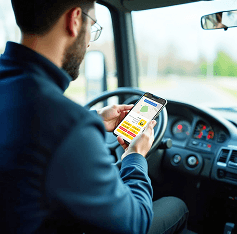

How do I perform a service?
If your service time is approaching, open the application and select the service you need to perform from the home page. By selecting the service, additional options will become available, allowing you to access more details about the service. We will review all of these options below.
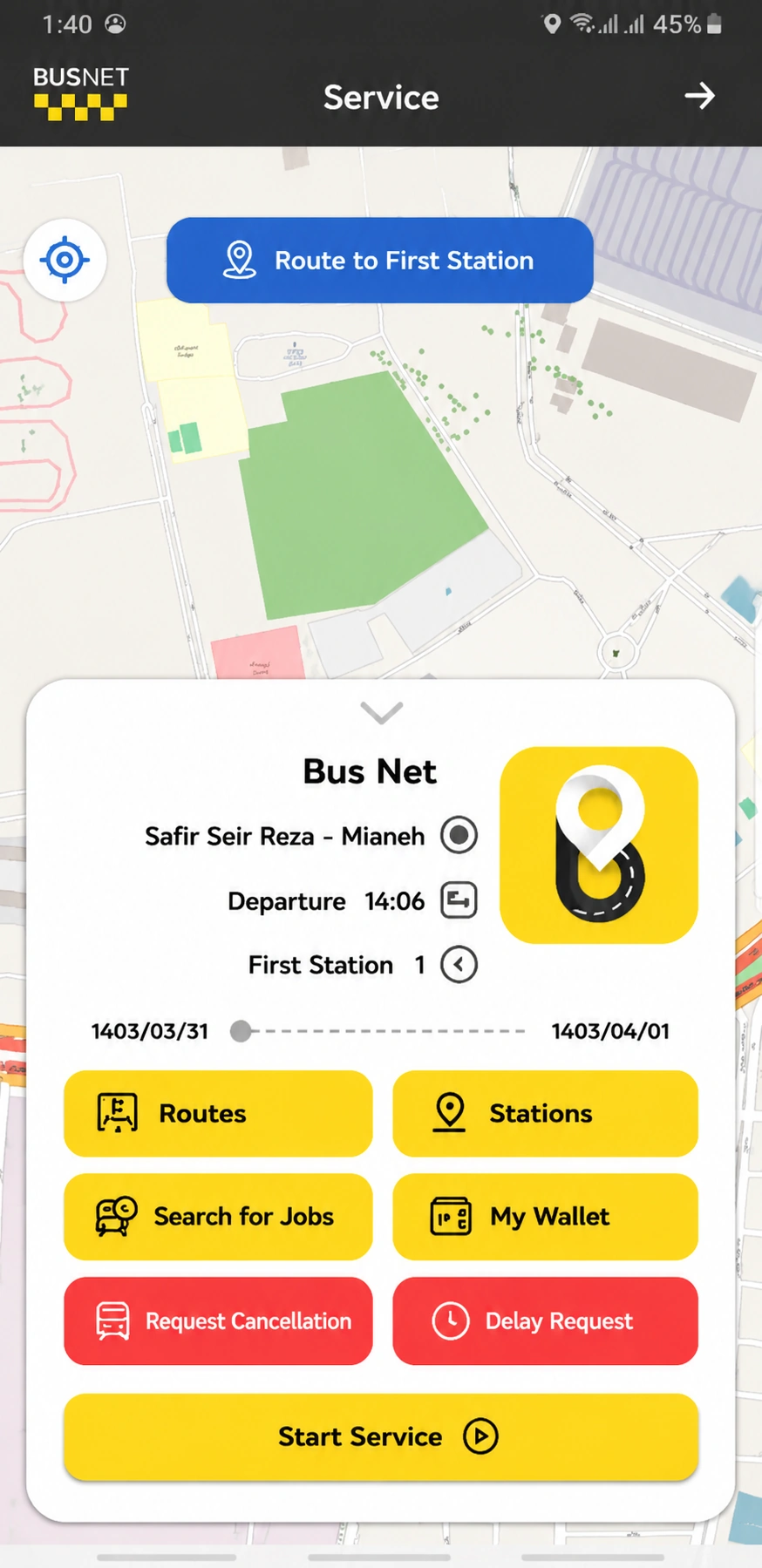
When you want to start your service, press the "Start Service" button. It will then change to "Start Moving" and your service will begin.
At the end of the trip, selecting the "End Trip" option will register the completion of your trip in Busnet. Please note that for arrival services, the trip is automatically completed at the scheduled time and at the destination location (company).
By pressing the navigation button to the first station, you can view the route to the first station at any time of the day or night.
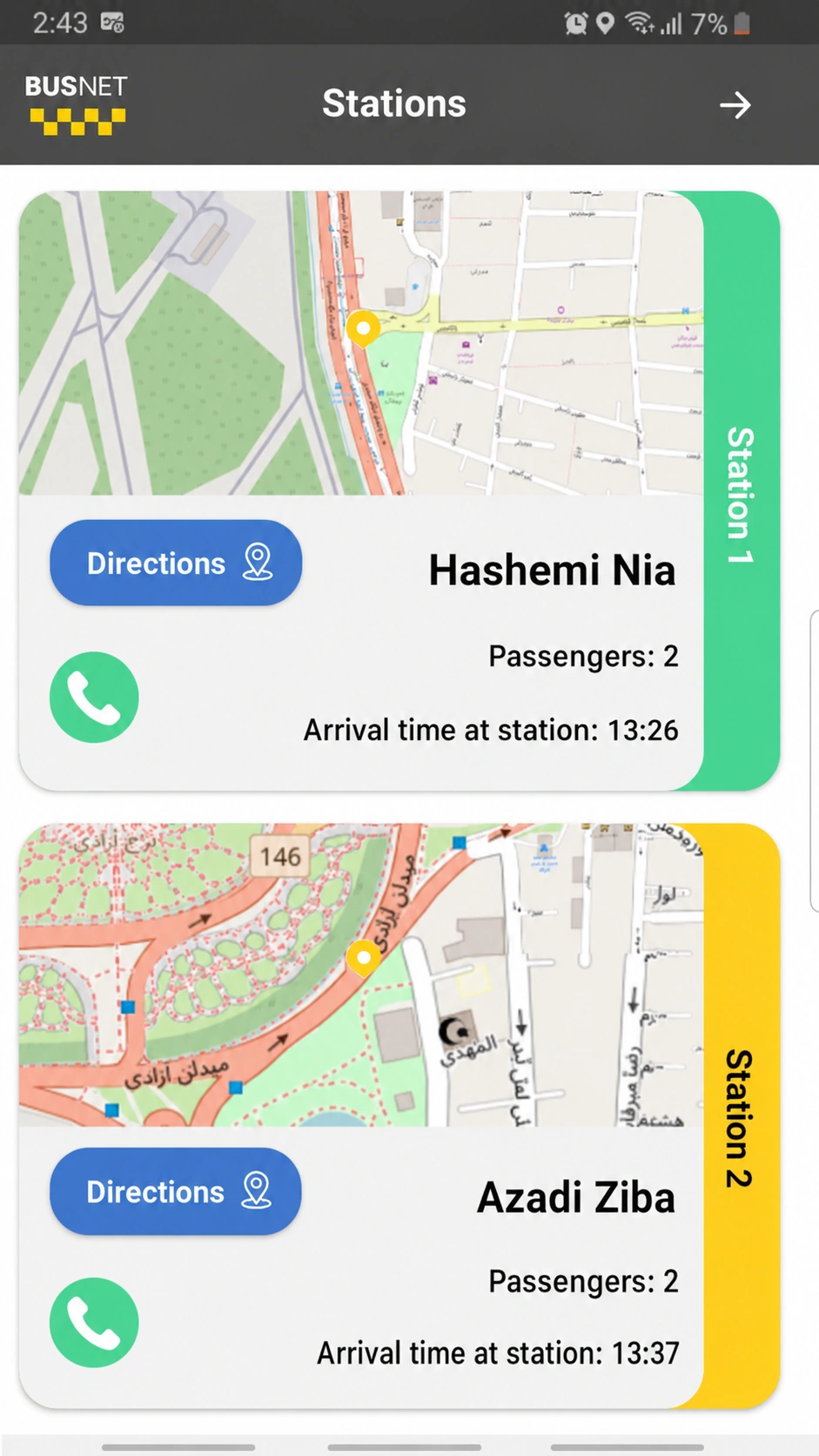
By pressing the "Stations" button, all stations will be displayed separately on the map. The number of passengers and the estimated arrival time at each station will also be shown here. Drivers can also contact passengers from this section.
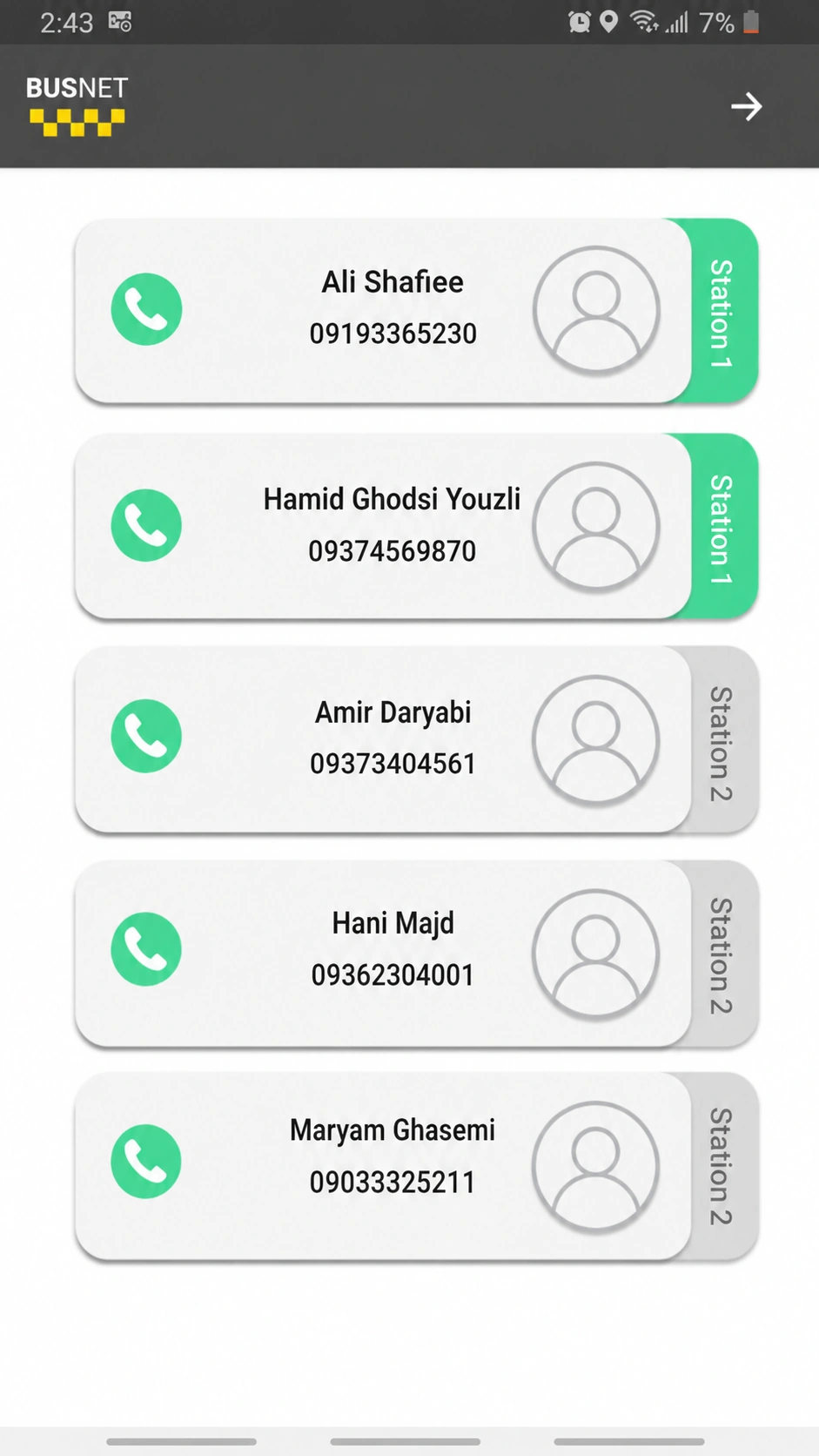
By pressing the "Passengers" button, the list of passengers will be displayed by station. This section also provides the ability to contact passengers in the application for any necessary coordination.
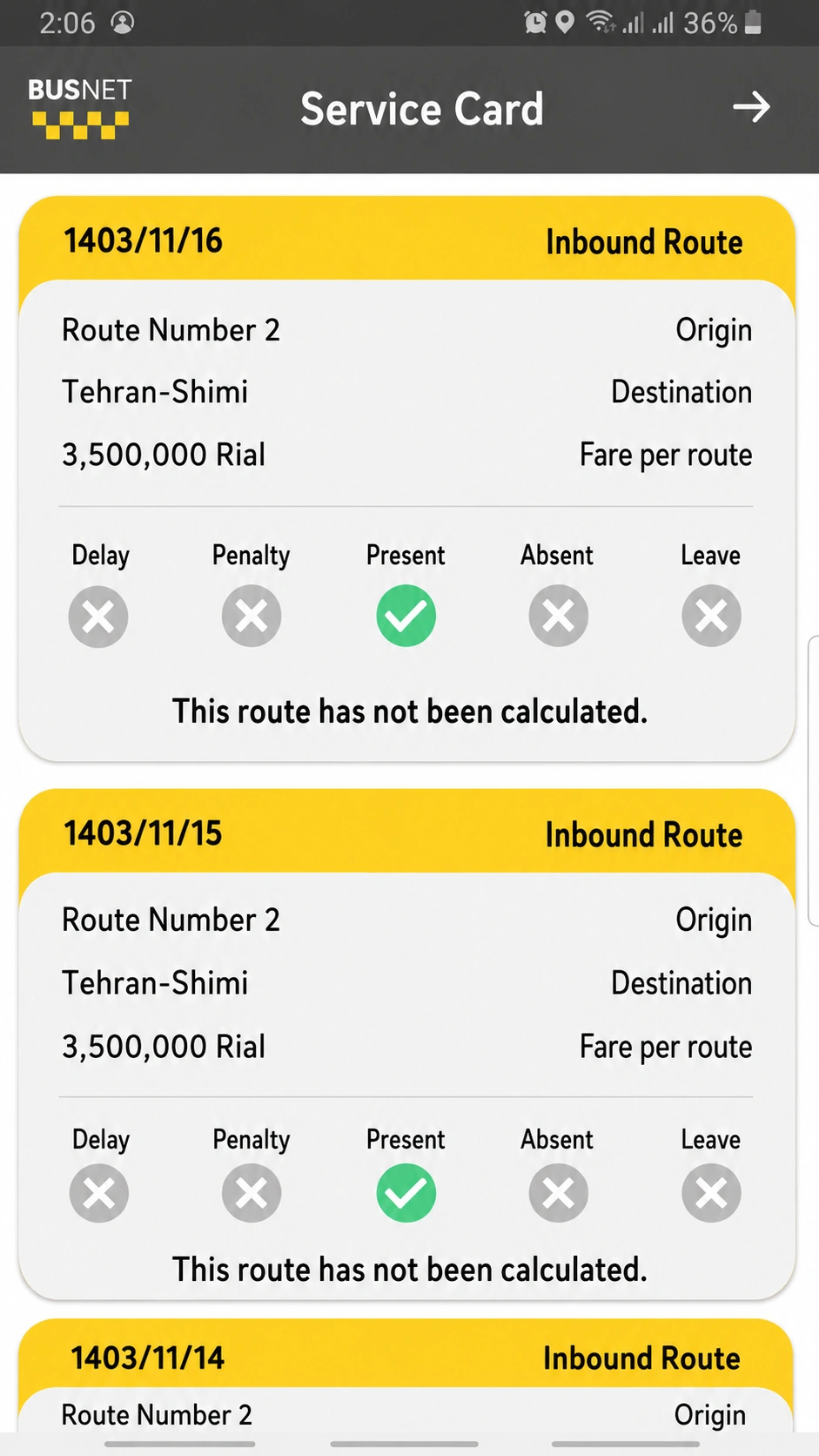
In the "Financial Transactions" section, you can view your service card and check the status of your routes.
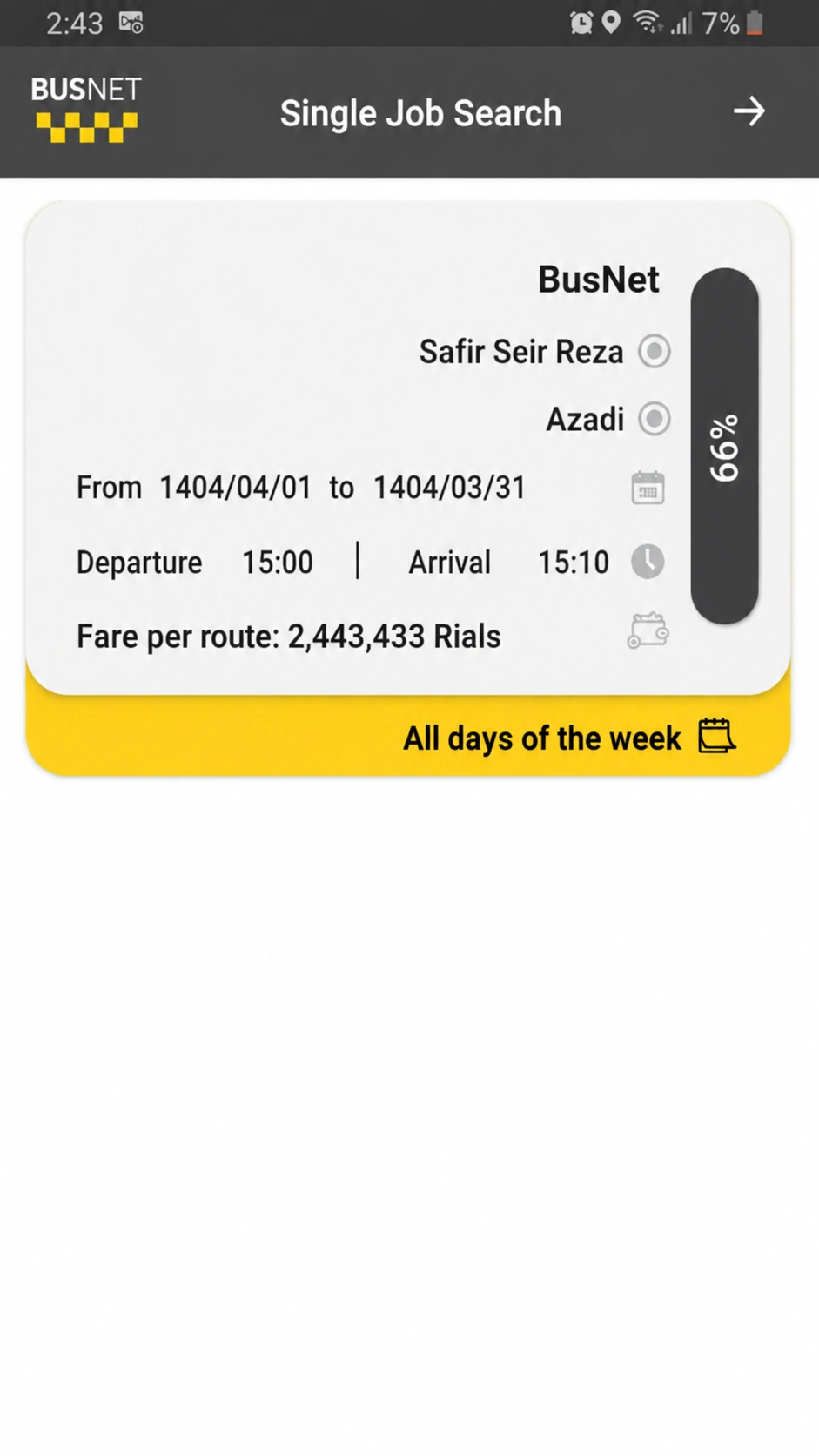
The "Find a Follow-up Service" option is one of Busnet's special and valuable services. This feature allows you to find another suitable service based on the time and destination location of your previous service, helping you make the most of your working hours and schedule services throughout the day that match your preferred locations.
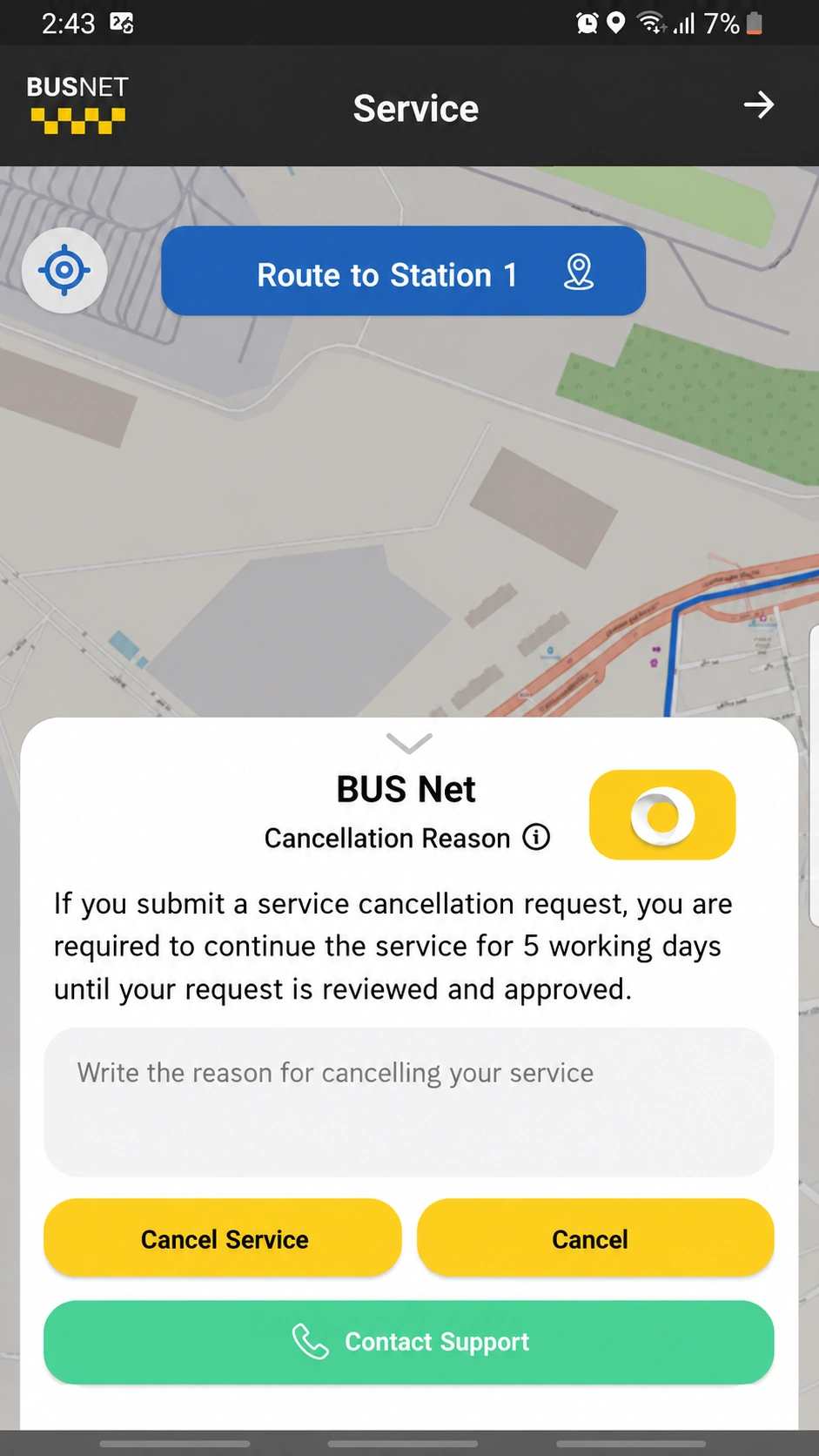
The "Cancel Service" button allows you to cancel your service. Please note that if you cancel your service, you are required to continue providing the service for 10 business days.
By pressing the "Request Backup Vehicle" button, you can request a replacement vehicle if you need a support vehicle due to circumstances such as vehicle breakdown, an accident, or other issues. After selecting the reason for the request, you must specify the number of passengers currently in the vehicle so that a replacement vehicle with the appropriate capacity can be assigned. Your request will then be sent to other drivers who do not currently have an active service, and you will be able to see the number of available drivers in real time. Once a backup driver accepts the service, your service information will be sent to them so they can continue the service.
At Busnet, our goal is to continuously improve the efficiency of transportation services.
Congratulations, dear BusNet user!