
How to choose your desired route and reserve a seat?
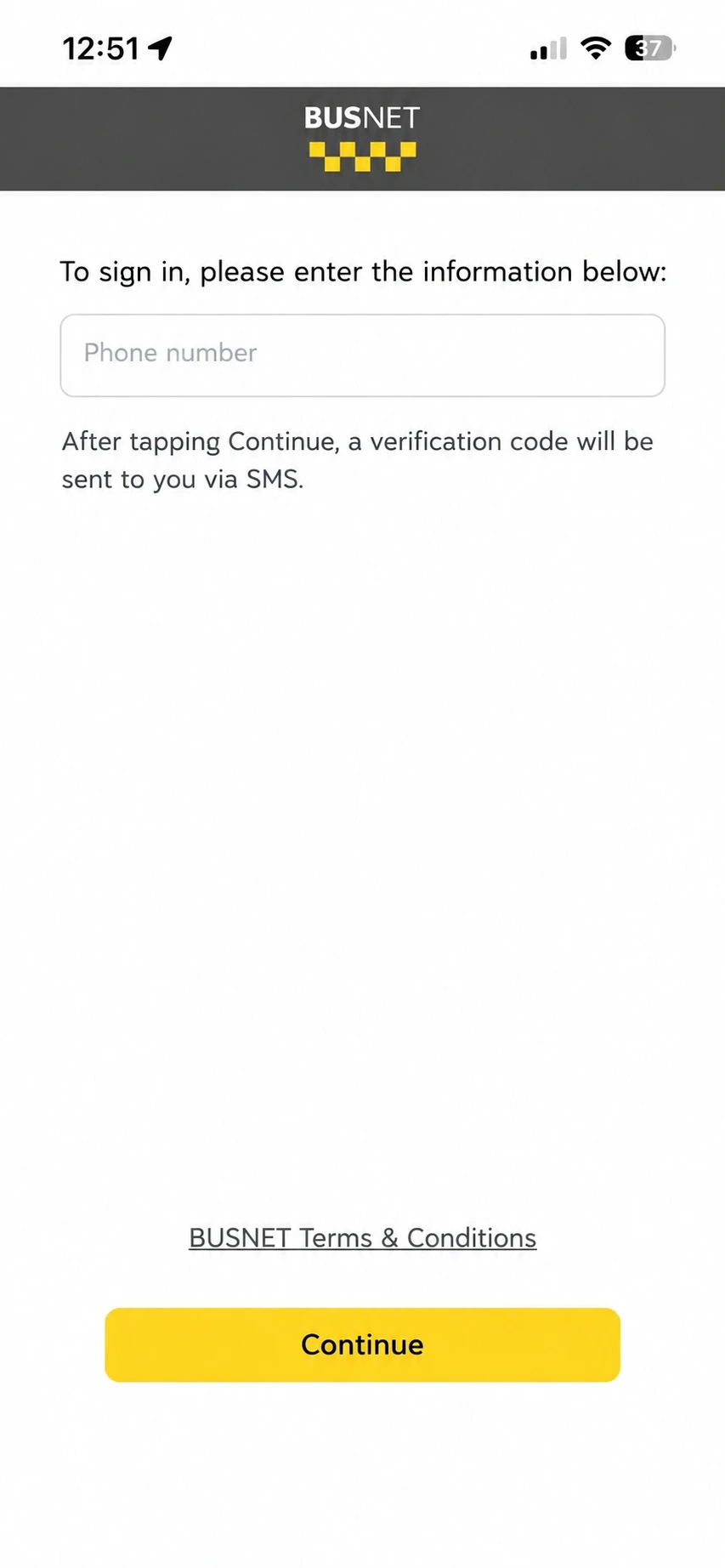
Signing in and registering on the Busnet app:• Enter your mobile phone number. • Tap “Continue”.
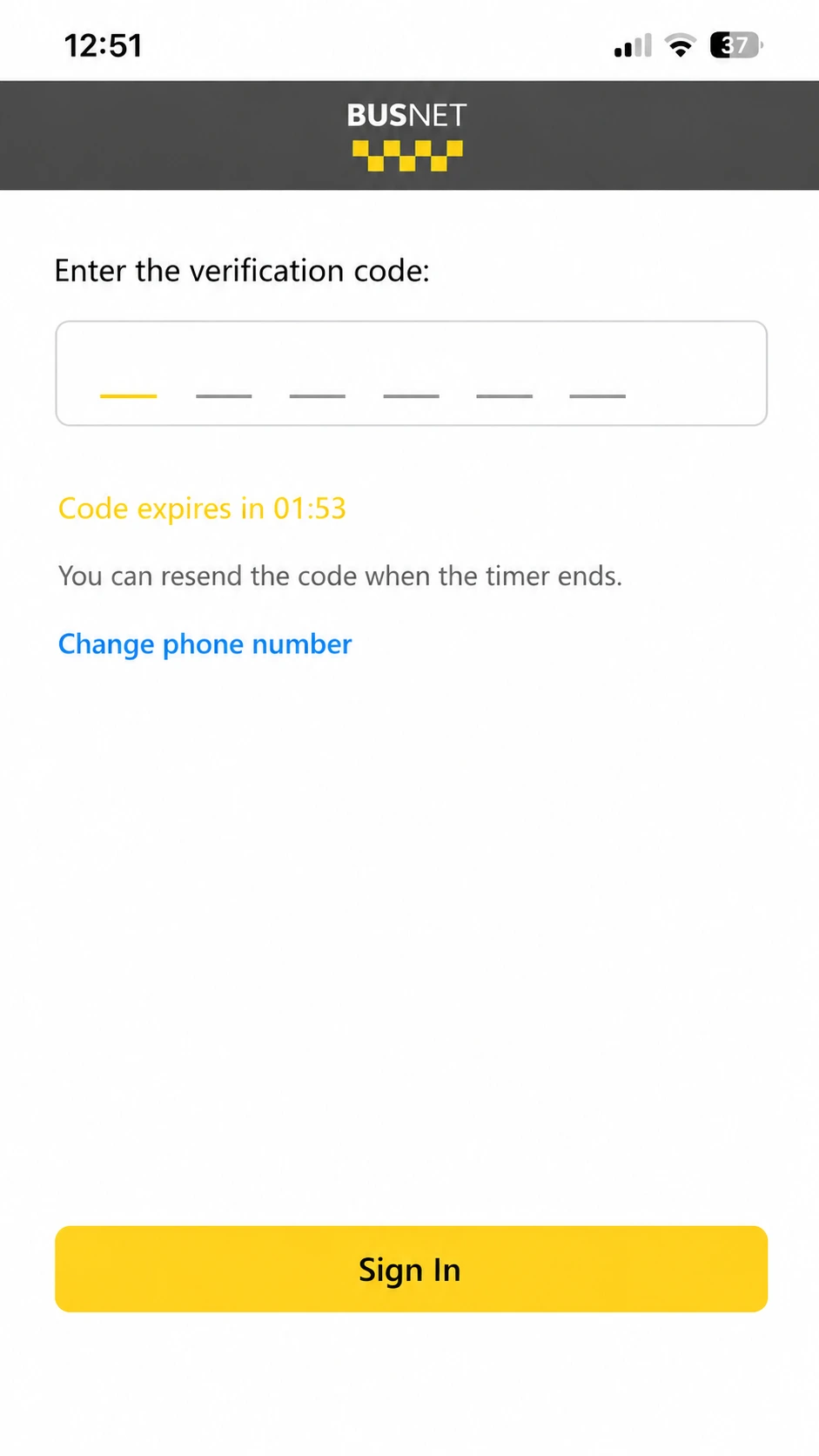
Entering the SMS verification code in Busnet:• Enter the six-digit verification code sent to you via SMS. • Once the code is verified, you will be signed in to your account.
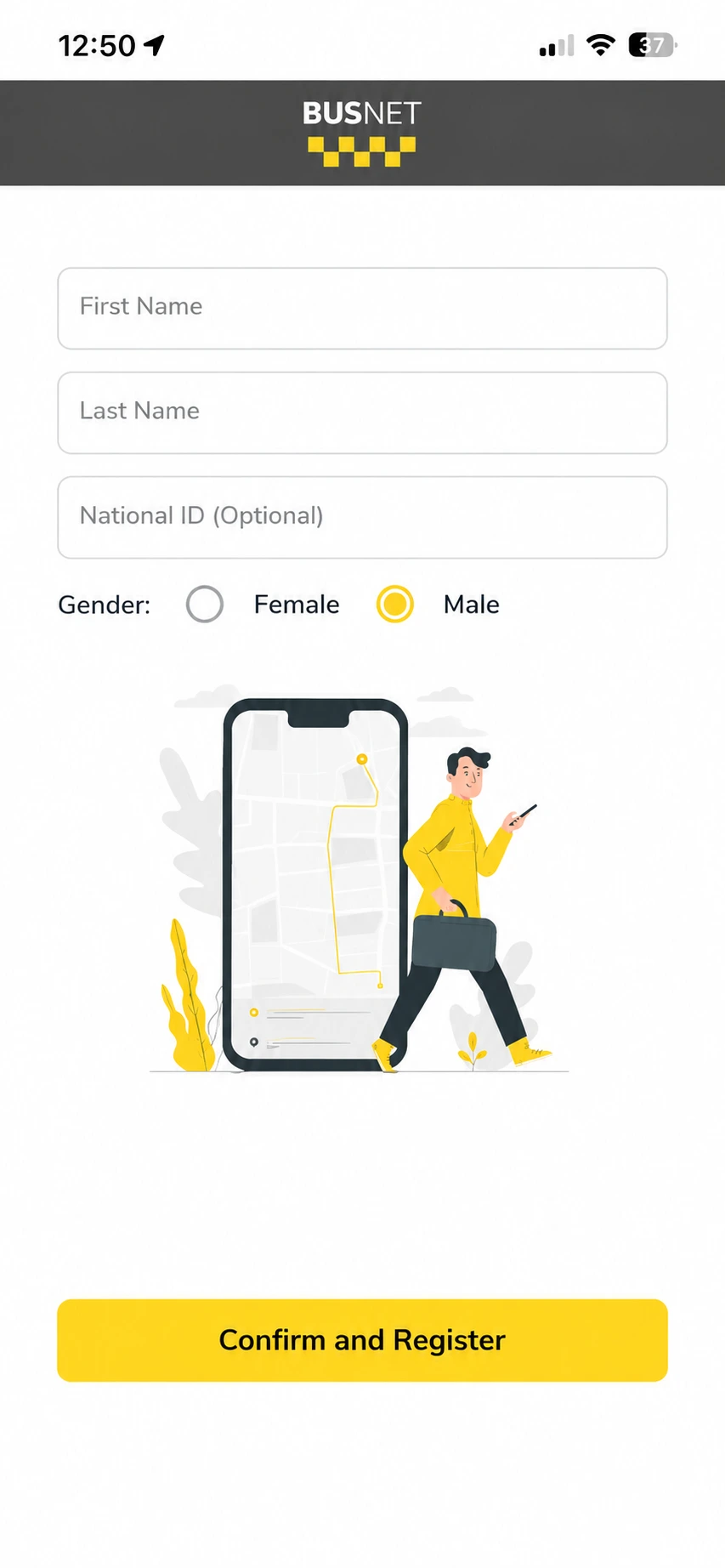
Completing your profile information in Busnet:• Enter your first and last name. • If desired, enter your national ID number. • Select your gender. • Tap “Confirm and Continue Registration”.
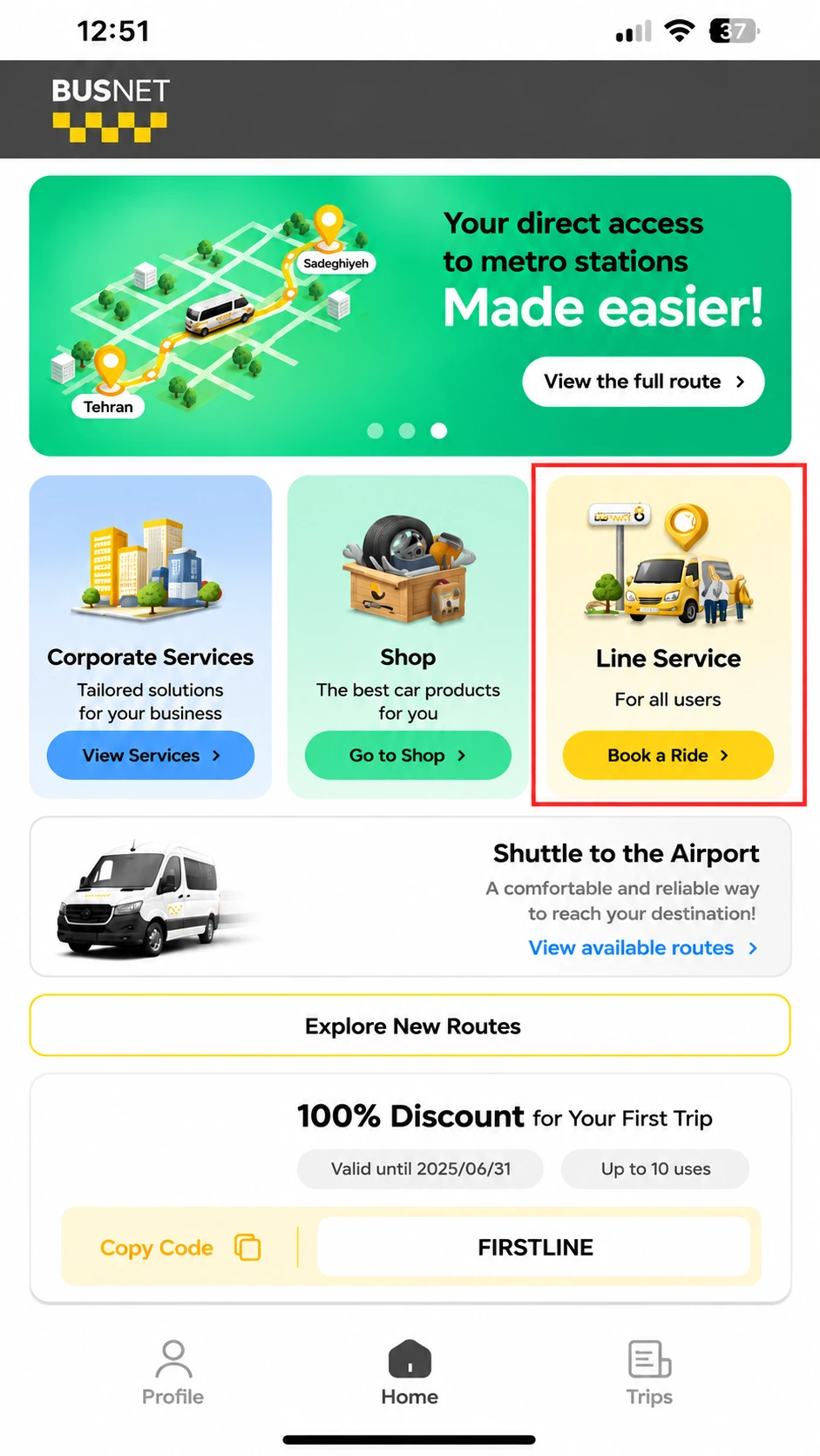
Selecting the Line service in Busnet:• On the home screen, select “Line Service”.
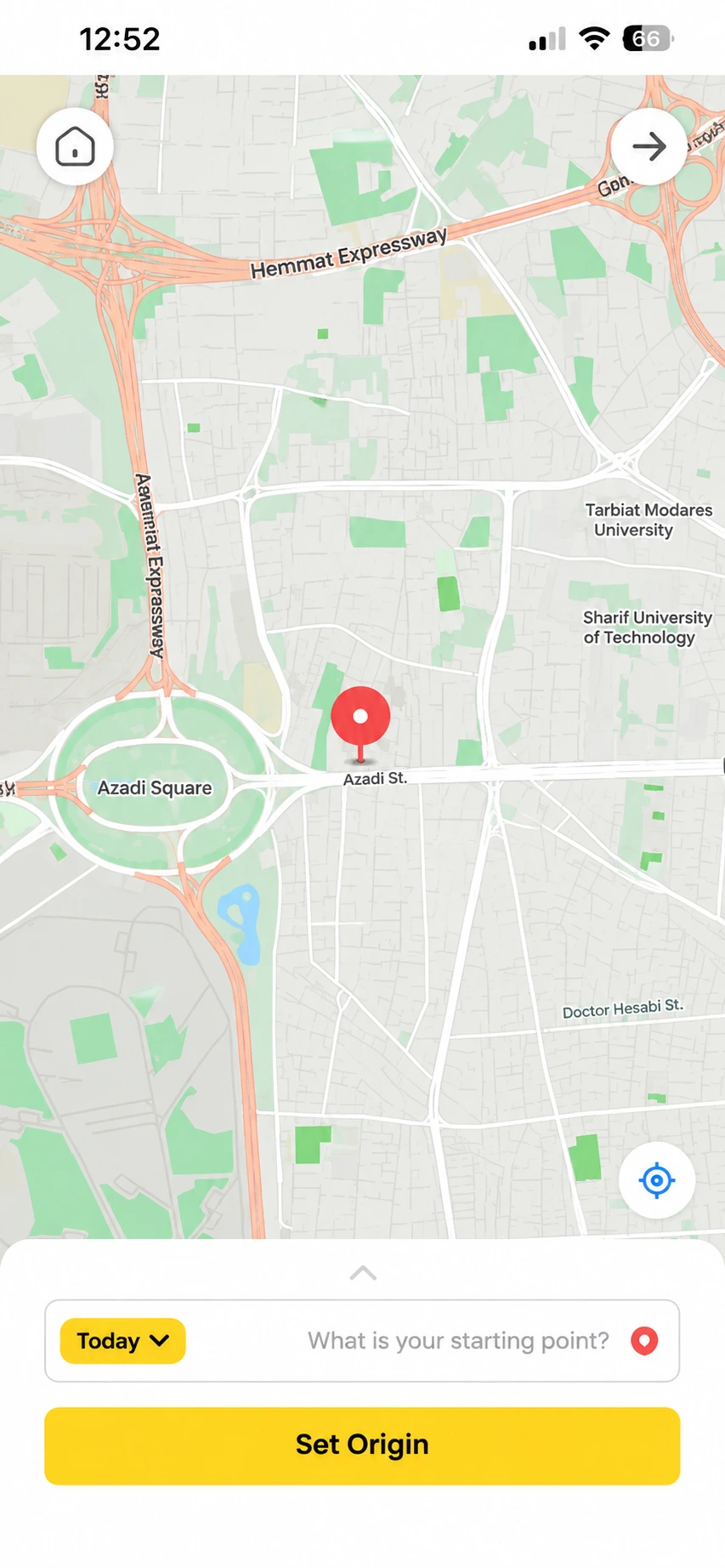
Selecting your starting point in Busnet:• Set your starting point by moving the map, or search for the starting address in the field at the bottom of the screen. • Tap “Origin”.
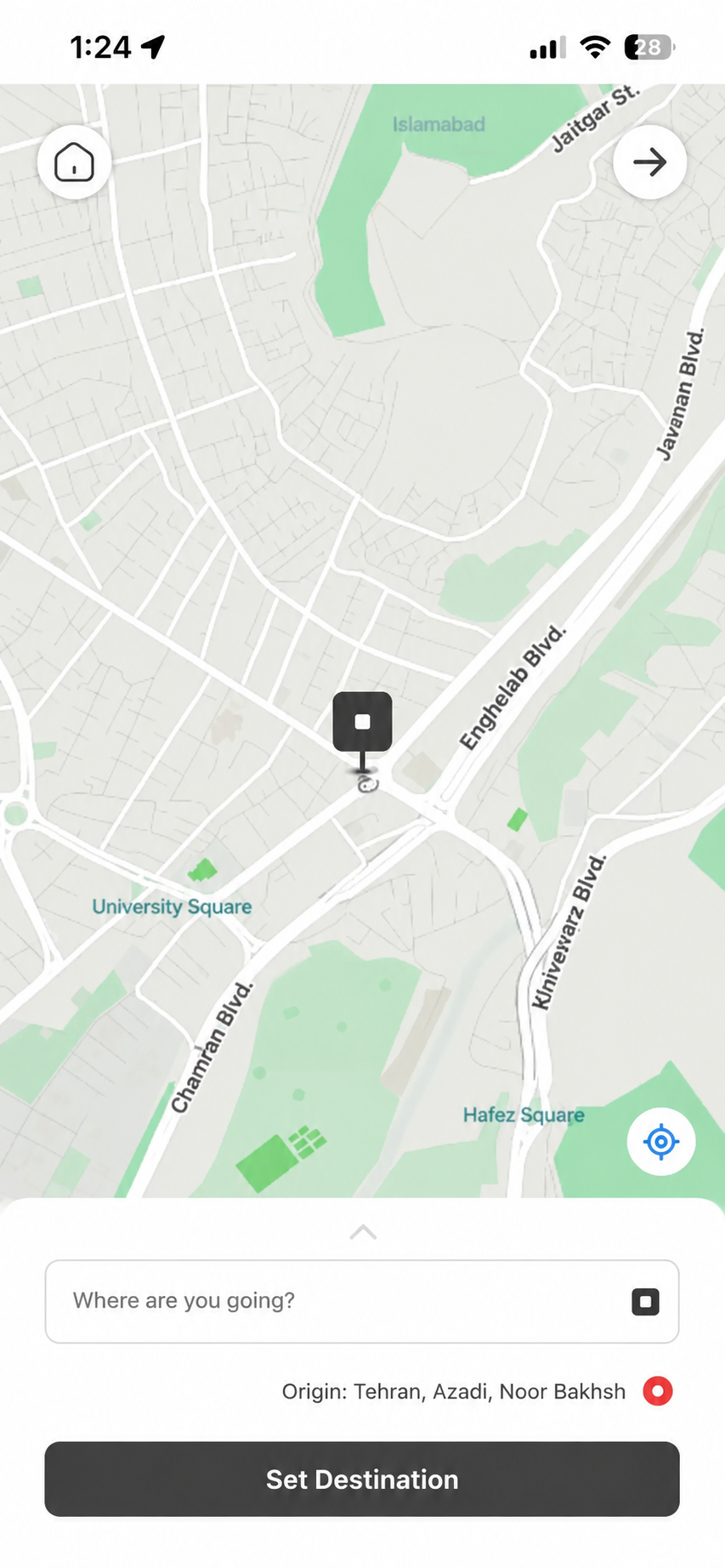
Selecting your destination in Busnet:• Set your destination by moving the map, or search for the destination address in the field at the bottom of the screen. • Tap “Destination”.
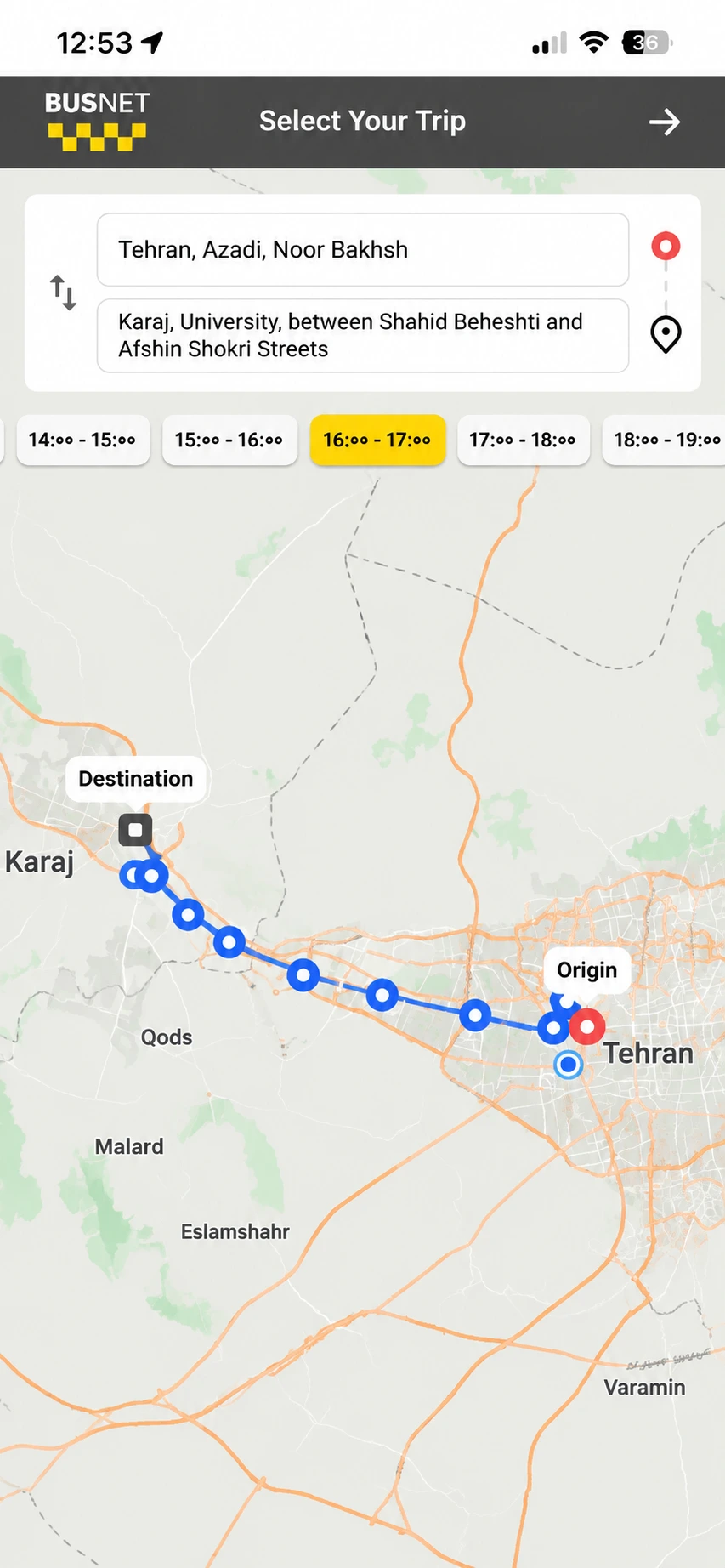
Viewing the route and intermediate stops in Busnet:• The route and stops between the origin and destination are displayed on the map. • Intermediate stops are marked with blue dots. • Select your desired time range from the options at the top of the screen to view the available trips within that time range.
Selecting your boarding stop in Busnet:• Stops near your origin are displayed on the map. • Select your preferred stop and review its name, address, and boarding time. • To view other stops, scroll through the list of stops or select the icons displayed on the map. • Tap “I’ll Board Here”.
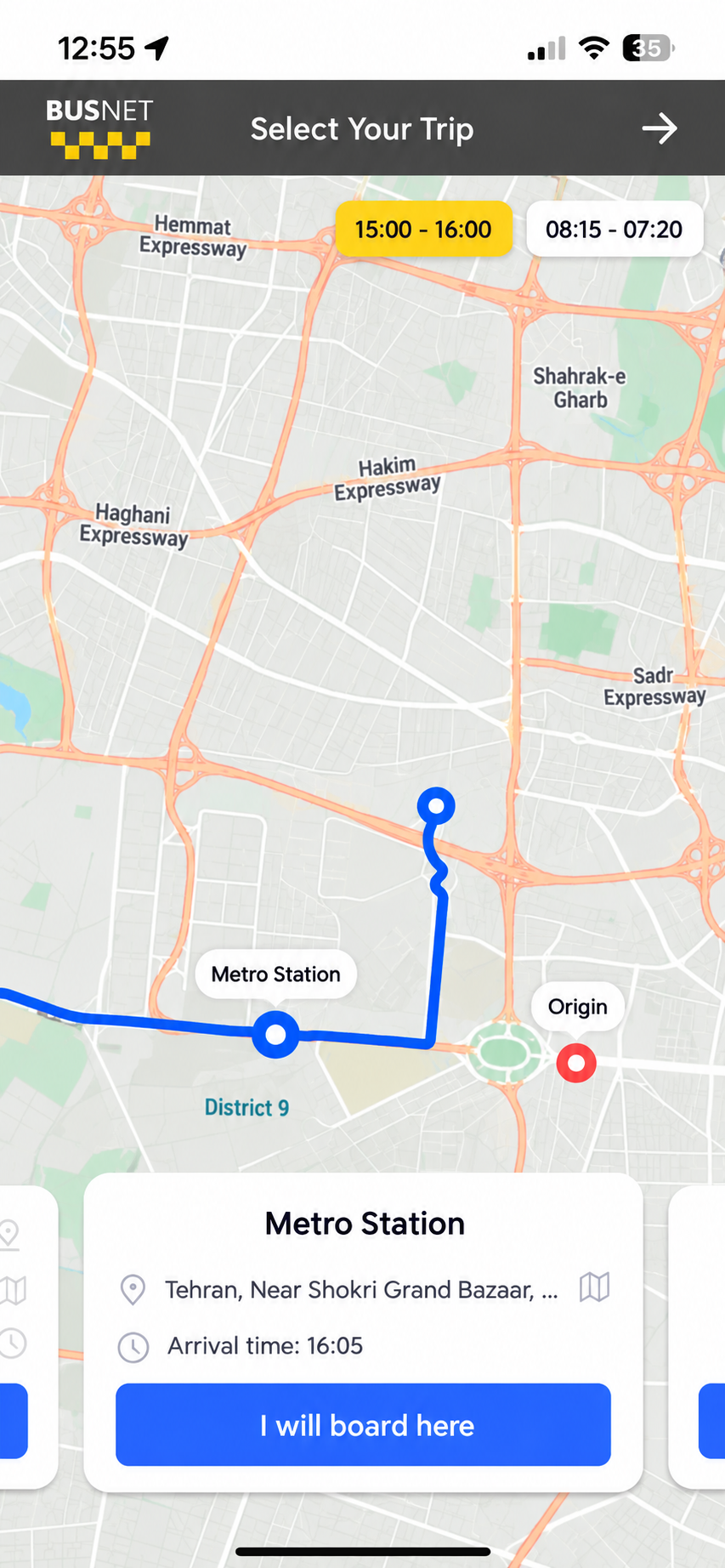
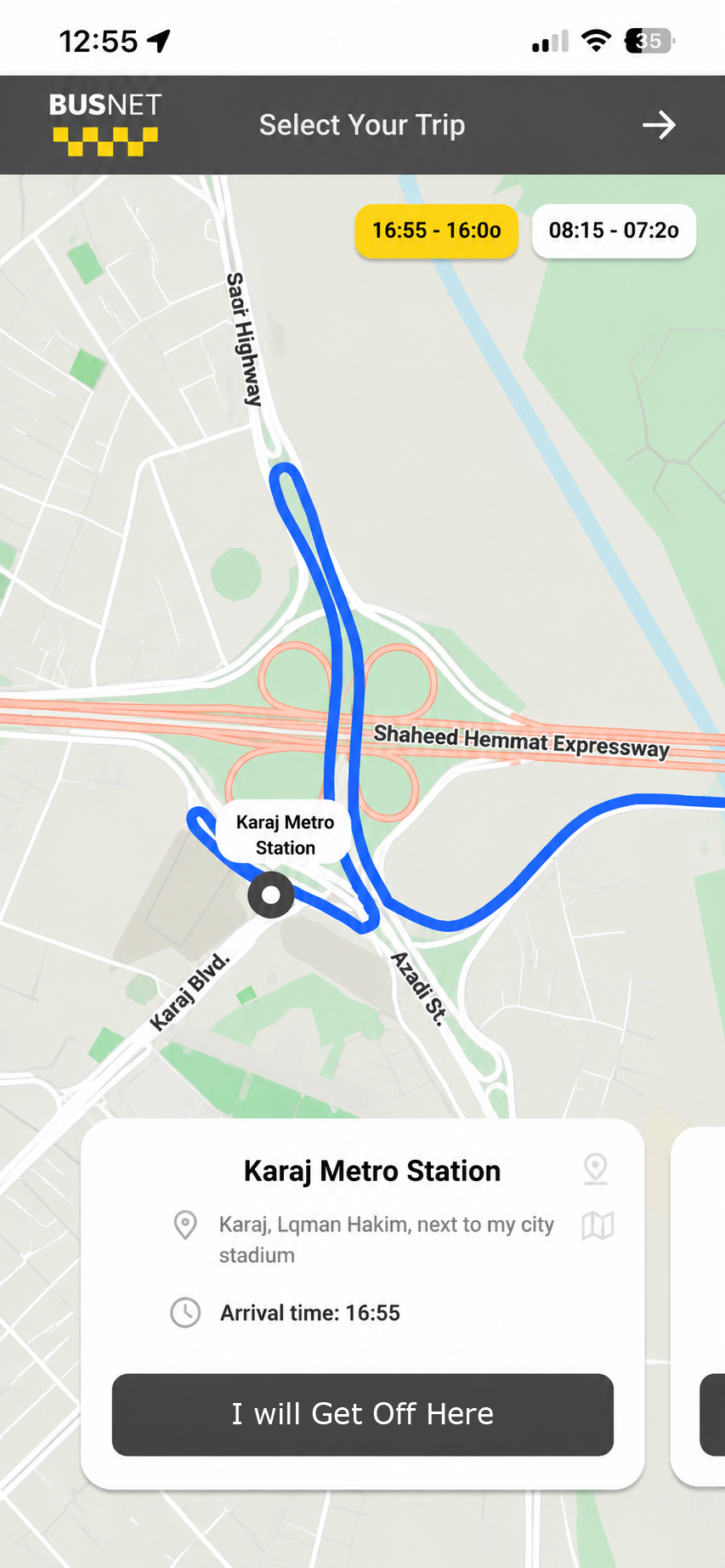
Selecting your drop-off stop in Busnet:• After setting your destination, nearby stops are displayed on the map. • Select and review a stop in the same way as you did for the origin. • Finally, tap “I’ll Get Off Here”.
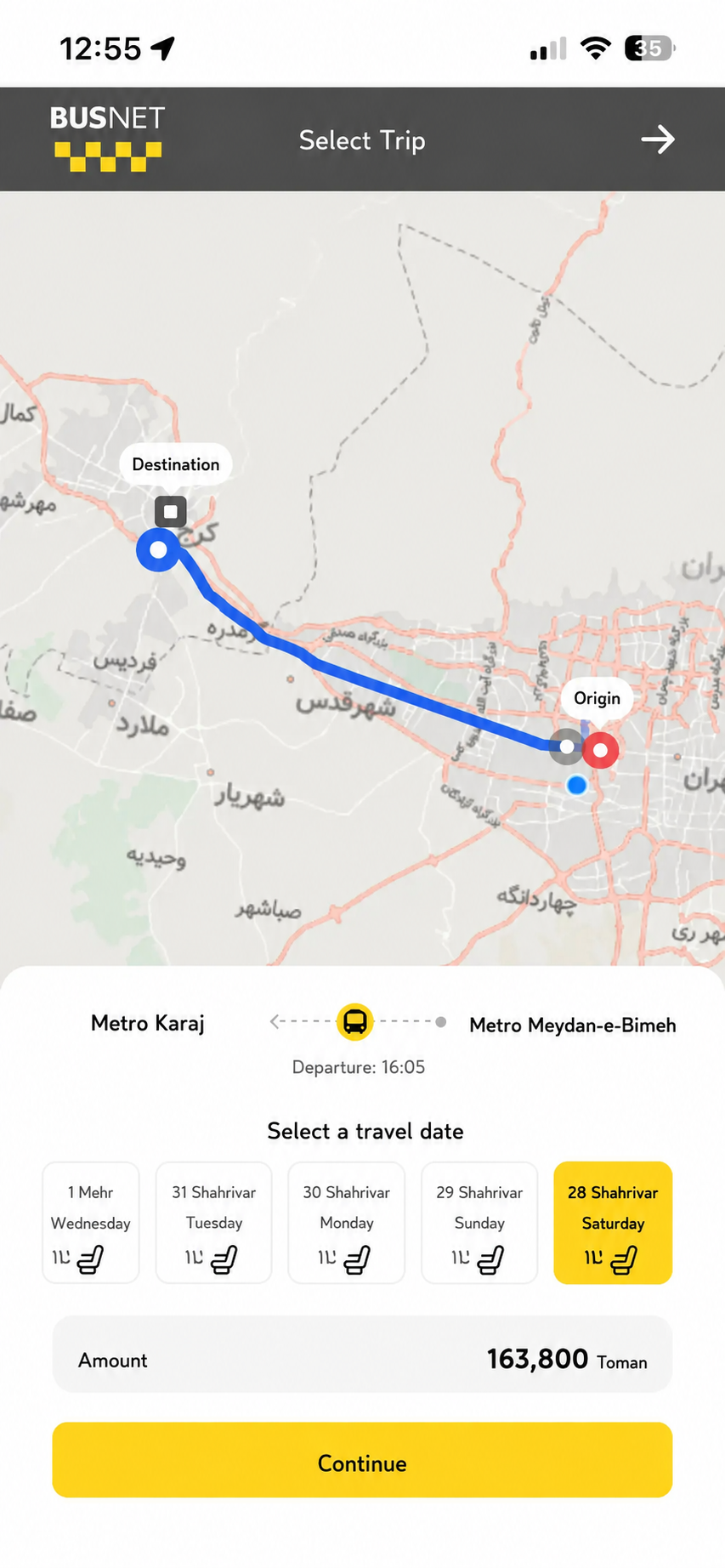
Selecting your travel day and making a reservation in Busnet:• Review the route, boarding and drop-off stops, and boarding time. • Under “Select Your Preferred Days”, choose your travel day. • Review the trip fare. • Tap “Reserve”.
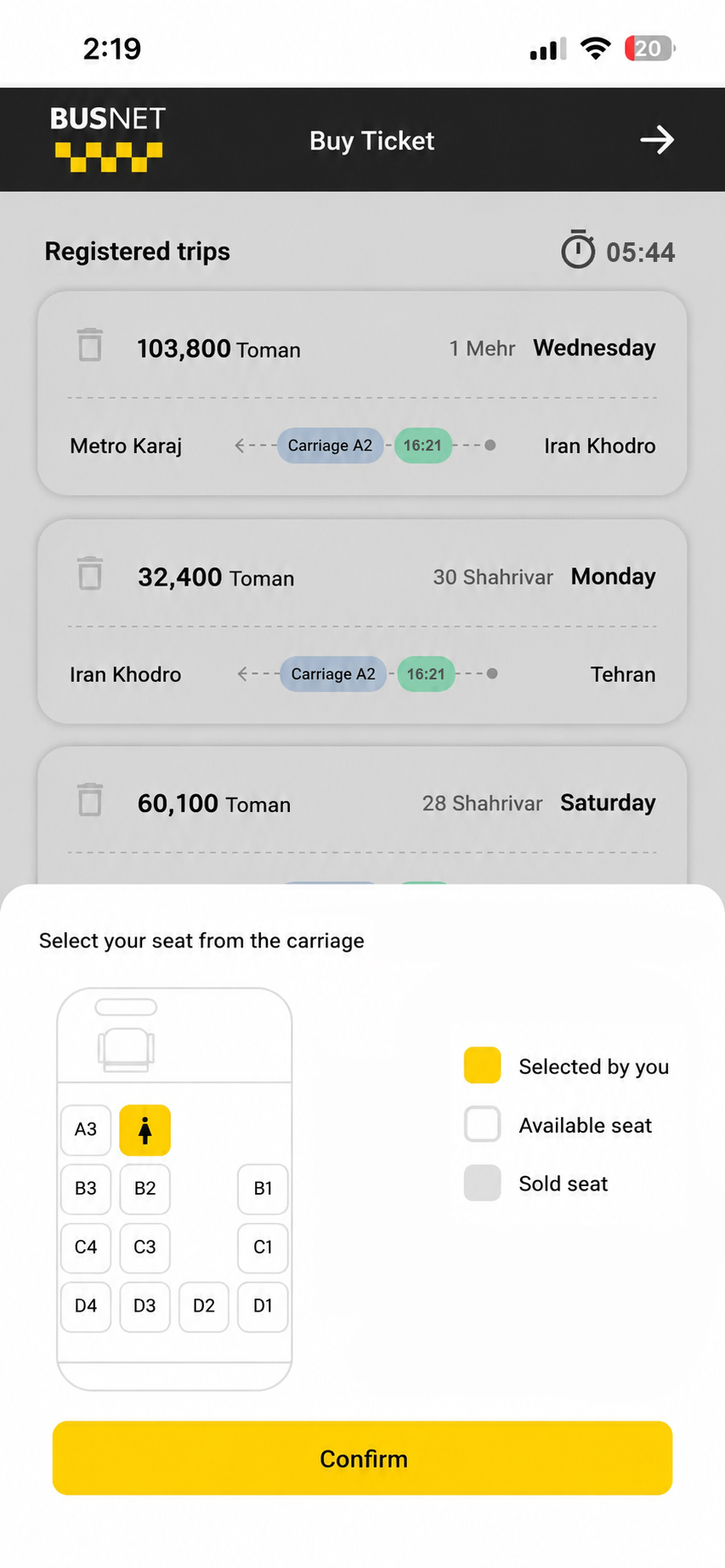
Selecting a seat in Busnet:• View your selected trips in the shopping cart. • Choose your preferred seat from the available seats. • Tap “Confirm”.
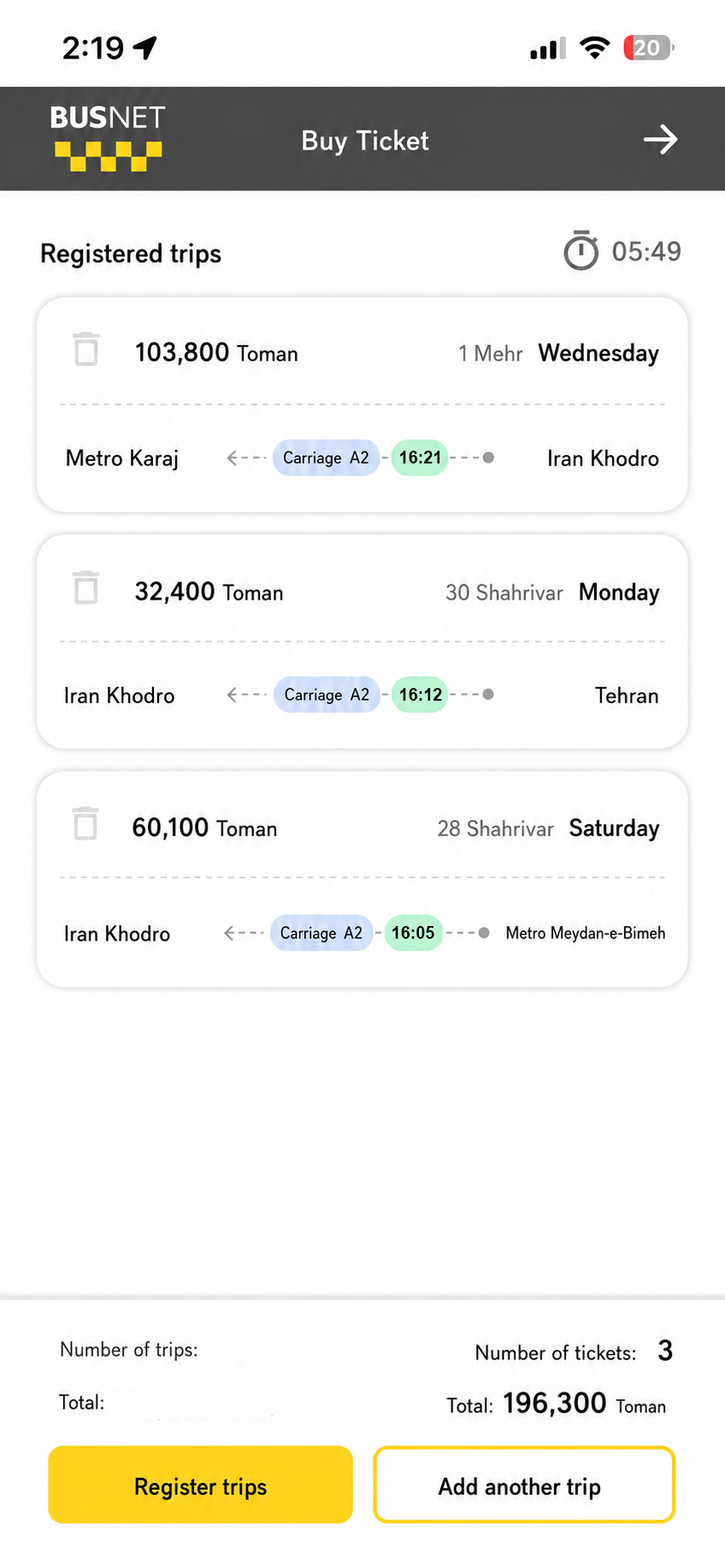
Finalizing your reservations in Busnet:• Review the number of trips and the total amount in the shopping cart. • To add another trip, tap “Reserve Another”. • To finalize your reservations, tap “Confirm Reservation”.
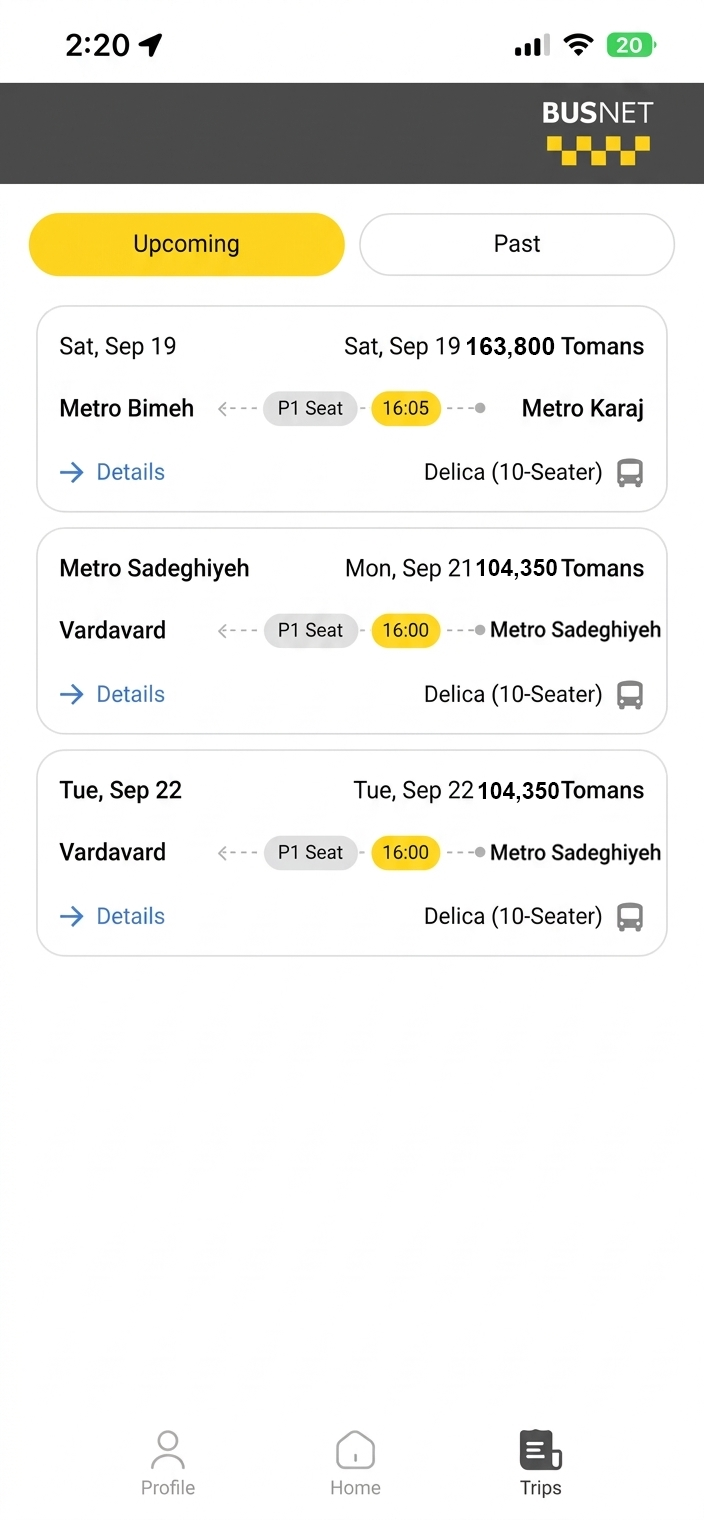
Viewing your reserved trips in Busnet:• Go to “Trips” from the bottom navigation menu. • View your upcoming trips. • The date, origin, destination, departure time, and seat number are displayed. • Tap “Details” to view complete trip information.
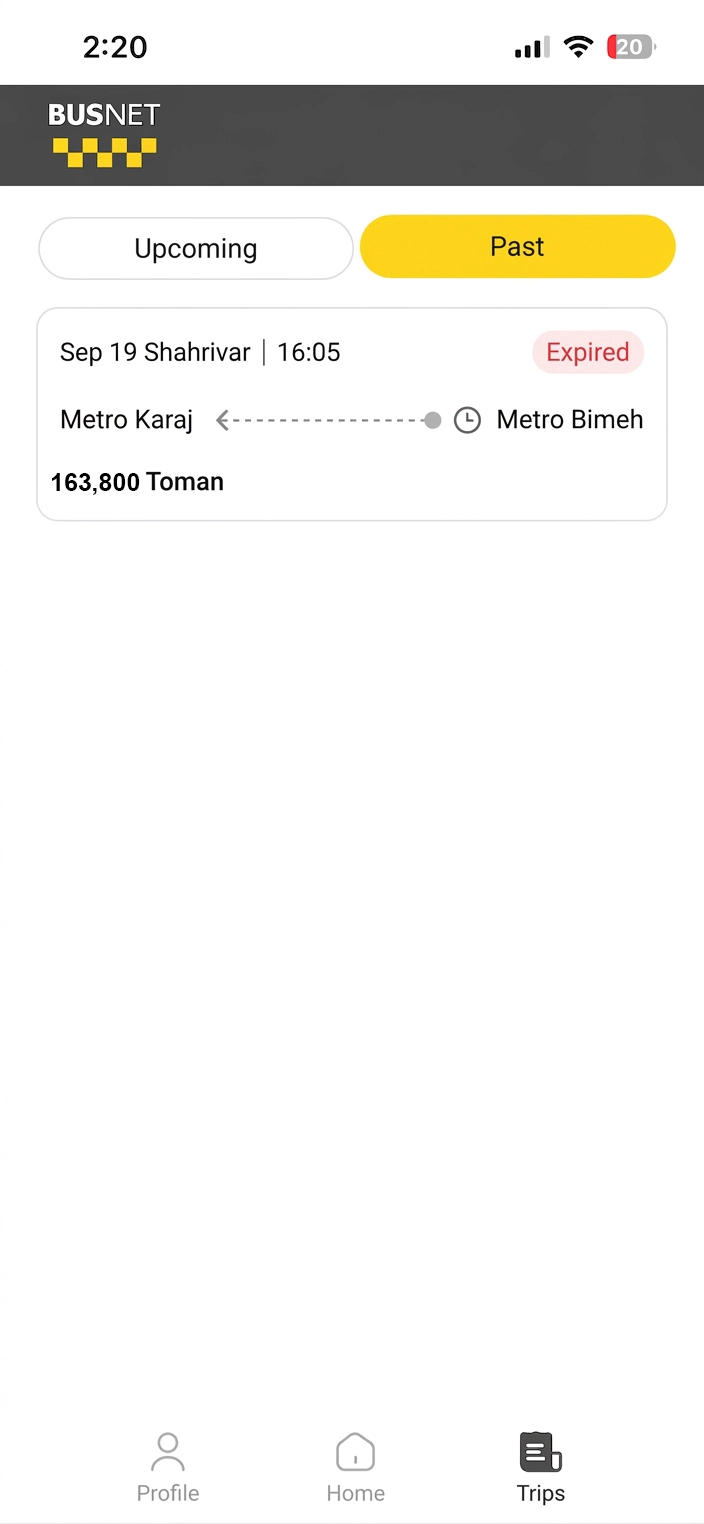
Viewing past trips in Busnet:• Go to “Trips”. • Select “Past”. • View information about completed trips, including the date, time, origin, destination, fare, and status.
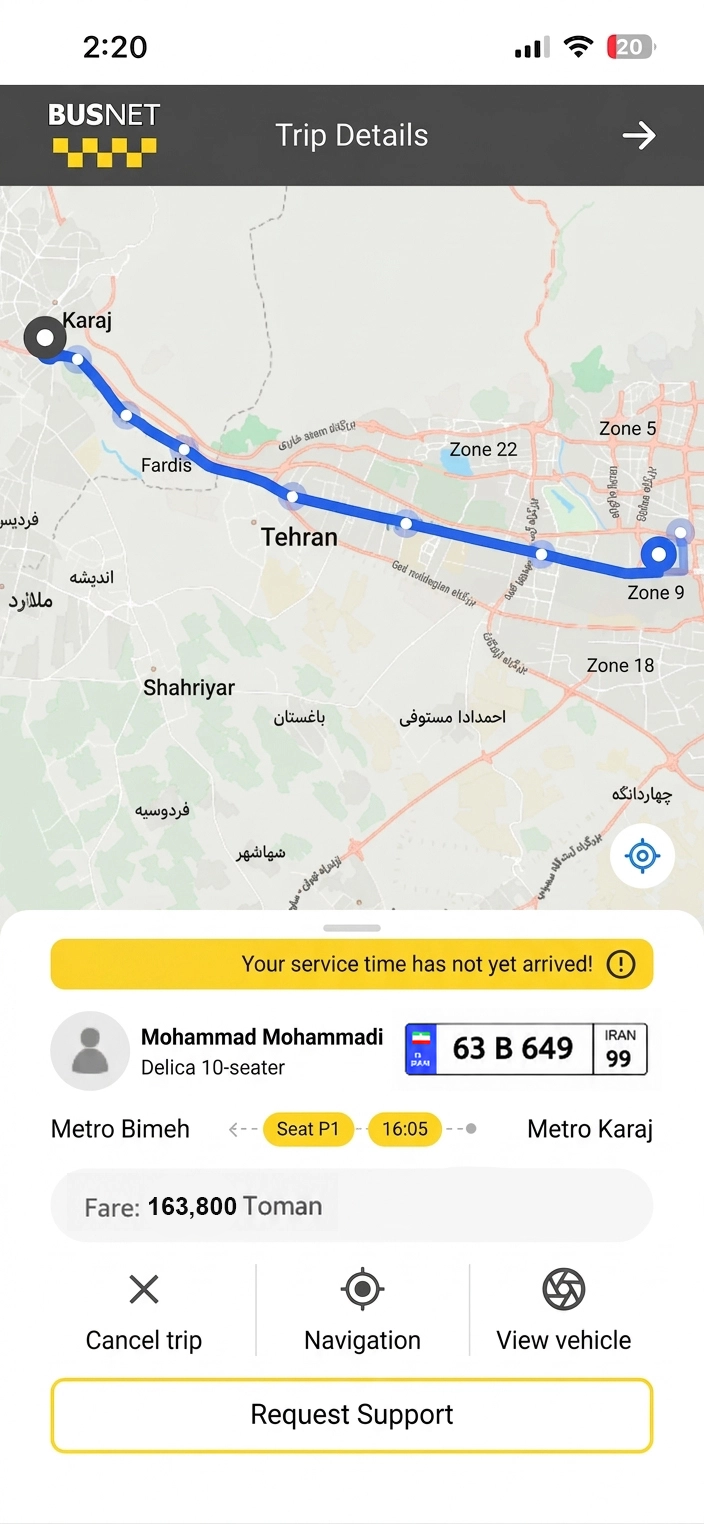
Viewing trip details in Busnet:• Tap “Details” for the trip you want to view. • View the route, driver and vehicle information, departure time, stops, seat number, and trip fare. • If needed, use the “Navigation”, “View Vehicle”, “Cancel”, and “Support” options.
Thank you for your attention